
Configure Models
Summary
A Bot can use plan model credits or your own provider credentials. Configure one primary model, multiple fallback models, or save a model without activating it. API keys are created by the provider, not by LightVela.
Check whether your plan already includes models
Some LightVela plans include ready-to-use models and model credits. If your entitlement is valid, credits remain, and the model is covered by your plan, you can start in Web Chat without entering your own API key. Check the current plan and Models pages for supported models, quotas, expiry, and usage rules; not every plan includes every model.
Configure your own provider below if you need a model outside your plan or want to use your own provider quota. Models included in a LightVela plan are separate from third-party subscriptions under the Coding Plan model tab, which require that provider’s API key.
Before you start
Sign in, select the intended Bot and open Management → Model. The Bot must be ready. Web Chat does not require a messaging channel. Prepare a valid provider API key and available quota when using your own model.
Configure a model
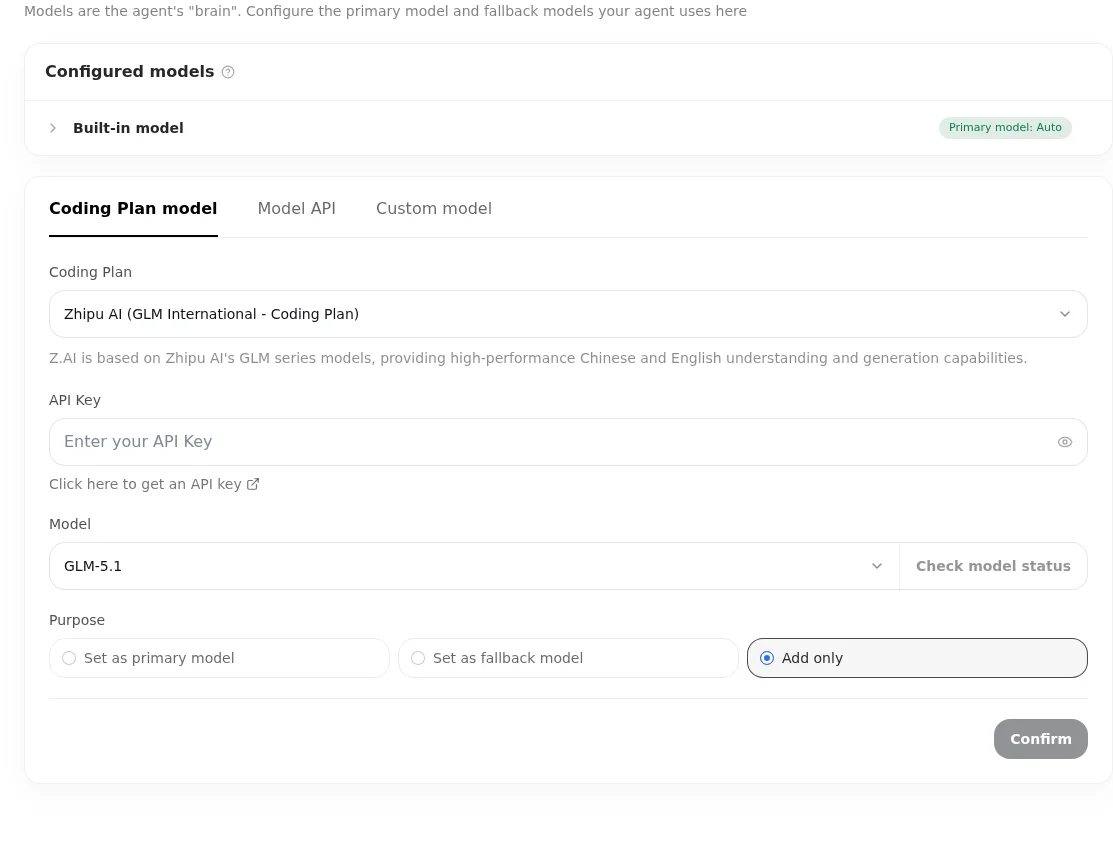
- Choose Coding Plan model, Model API or Custom model, then select the provider.
- If shown, use the API-key link to open the provider console and create a key. Return to LightVela and enter it.
- Select a model from the catalog or fetch available models when the provider supports discovery.
- Check model status, choose a use, and confirm the configuration. Wait for the saved model and its use marker to appear.
For a custom provider, enter its name and Base URL and select its actual protocol: OpenAI Chat Completions, Anthropic Messages or OpenAI Responses. A model list is not proof that a model can complete a request.
| Uses | Meaning |
|---|---|
| Set as primary model | The model used as the primary choice. |
| Set as fallback model | One of the configured fallback models. The primary model cannot also be a fallback. |
| Add only | Save the model without making it primary or fallback. |
Fetch available models · Check model status · Confirm
Check and manage models
Check model status to view the outcome, model, endpoint, response time and error details. After saving, send a short message in Web Chat. A successful check only confirms that attempt.
Expand a configured provider to add another model and save it. Use the model-row actions to change the primary model, set or cancel fallback status, or delete a model. Deleting the last model under a provider also removes that provider configuration. See Model Switching.
Troubleshooting
For 401 errors, verify the key, endpoint, protocol, region and plan type; Coding Plan and ordinary API credentials may differ. If saving is uncertain, refresh and inspect the saved configuration before retrying. Check quota and Diagnostics when chat still fails.
Last updated 2026-10-19