
Cloud Computer (Beta)
Summary
Labs → Cloud Computer shows the selected Bot’s cloud desktop in your browser. Viewing the desktop does not necessarily grant keyboard and mouse control. This feature is Beta.
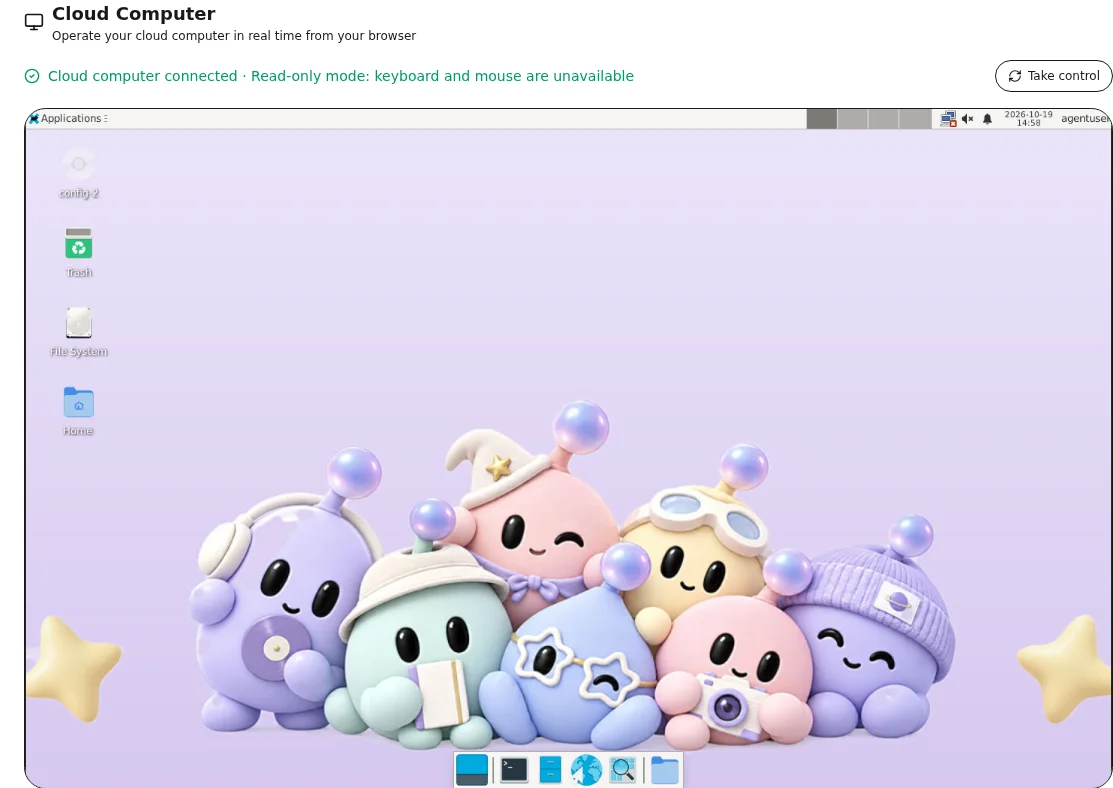
The image shows a connected desktop. If the page says read-only, obtain control before using the keyboard and mouse. The desktop operating-system language may differ from the console language; check the status to confirm control.
Before you start
Sign in, select a ready Bot you can access, and open Labs → Cloud Computer. Wait for installation, startup and the connected state. The UI estimates roughly 2–4 minutes for first installation and 1–2 minutes for first startup; actual progress takes precedence.
Take control
If the status is read-only, choose Take control and wait for authorization. Check that keyboard and mouse input responds before treating the connection as writable. These actions affect the selected Bot’s cloud environment.
If the desktop has just restarted, taking control may first restore keyboard and mouse authorization automatically. Wait for the status update; if authorization is still not ready, follow the prompt and retry later rather than repeatedly requesting control.
Troubleshooting
Brief disconnections trigger bounded reconnection attempts. When a failure, expired lease or sleep message asks you to retry, follow that prompt. For repeated failures, check Diagnostics; remove sensitive information before sharing screenshots.
Last updated 2026-10-19