
Advanced Settings
Summary
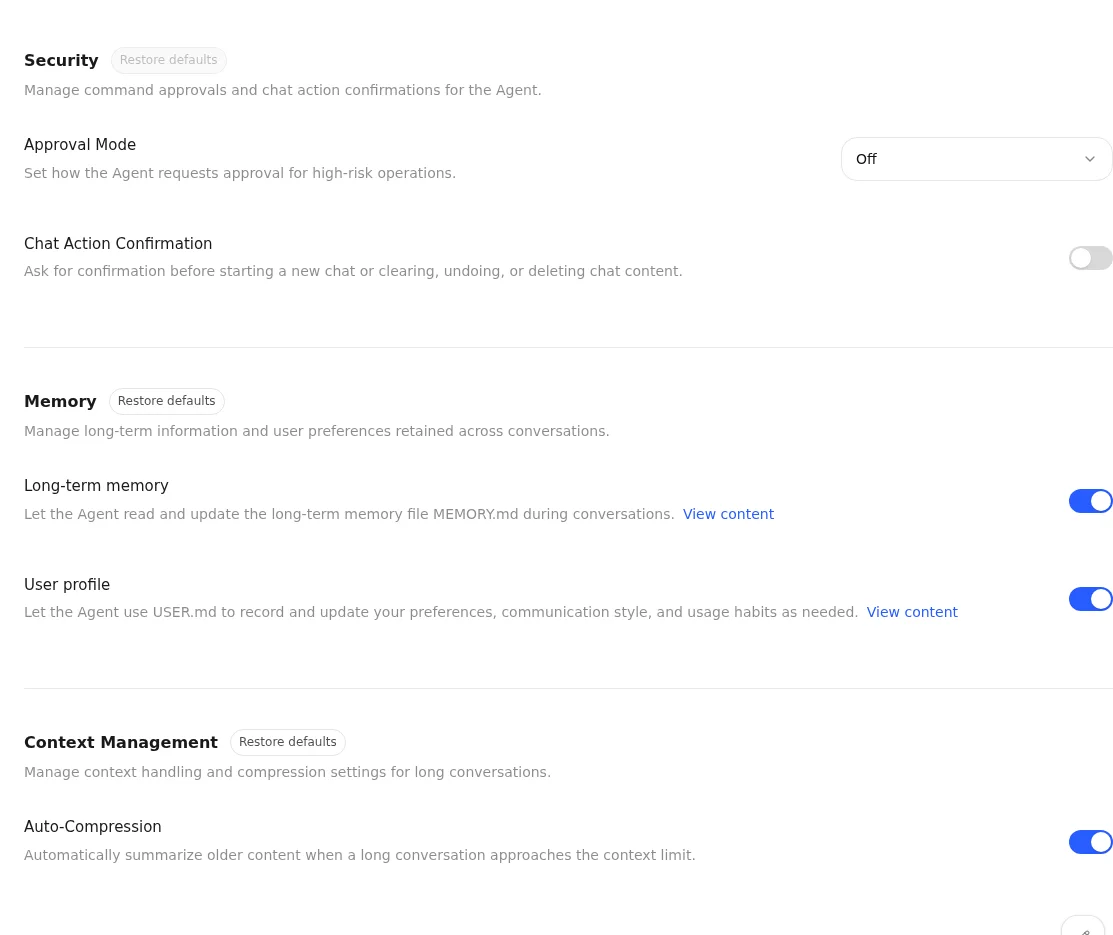
Advanced Settings lets you control how your Hermes Agent manages safety, memory, and conversation context. You can choose how the Agent requests approval for high-risk operations, manage persistent memory, user profile, and automatic compression for long conversations, then choose when compression starts, how much recent content it keeps, and how many recent messages always remain intact. After Approval Mode is saved, LightVela reads the configuration back to confirm the new value. After a Memory or Context Management setting is saved, LightVela restarts the related service and reads the configuration back to confirm the new value.
This page covers
- Managing how the Agent requests approval for high-risk operations.
- Managing persistent memory and user profile.
- Managing automatic compression for long conversations.
- Setting the compression threshold, retained-content ratio, and protected recent-message count.
- Restoring the defaults for the Security, Memory, or Context Management group.
Before you start
- Confirm that the target Agent is running.
- Open Agents and select the Agent you want to configure.
- Open Advanced Settings.
When an Agent is not running, you can view its current values but cannot change them.
Available settings
| Group | Setting | What it does |
|---|---|---|
| Security | Approval Mode | Choose Smart, Always Ask, or Off to control how the Agent requests approval for high-risk operations. |
| Security | Chat Action Confirmation | Ask before starting a new session or clearing, undoing or deleting session content. |
| Memory | Persistent Memory | Lets the Agent read and update its long-term memory in later conversations. |
| Memory | User Profile | Lets the Agent record and use your preferences, communication style, and habits. |
| Context Management | Automatic Compression | Summarizes older content when a long conversation approaches the context limit. |
| Context Management | Compression Threshold | Sets the context-use ratio that starts compression, from 0 to 1. |
| Context Management | Compression Retention Ratio | Sets how much recent conversation text is retained after compression, from 0.1 to 0.8. |
| Context Management | Protected Recent Messages | Sets the number of recent messages that stay intact during compression, with a minimum of 1. |
Change a setting
Approval Mode
- In the Approval Mode list, select Smart, Always Ask, or Off.
- If you select Off, read the risk warning and confirm that you want to turn approvals off.
- Wait for the page to read the configuration back and confirm that it shows the mode you selected.
When Approval Mode is Off, high-risk operations no longer request approval. Use it only when appropriate in a trusted environment.
Chat Action Confirmation
In Security, change Chat Action Confirmation, review and confirm the prompt, then check the value read back after saving. When on, the listed session operations ask for confirmation; when off, they run directly. This is separate from Approval Mode for high-risk tools. Saving this switch does not restart the gateway. Restoring Security turns this switch off; verify the value read back after saving.
Switch settings
- Select the switch beside Persistent Memory, User Profile, or Automatic Compression.
- Read the confirmation message and confirm the change.
- Wait for the save to finish.
Turning off Persistent Memory or User Profile does not delete existing content. Turning off Automatic Compression keeps the existing compression values, but stops automatic summaries of older conversation content.
Number settings
- Select the edit button beside the value you want to change.
- Enter a value within the allowed range.
- Select Save or press Enter to save the value.
- Select Cancel or press Escape to discard the edit.
You can change the compression threshold, retention ratio, and protected-message count only while Automatic Compression is on.
Restore defaults
Advanced Settings provides Restore defaults separately for the Security, Memory, and Context Management groups.
- In the group you want to reset, select Restore defaults.
- Read the confirmation message.
- Confirm the restore.
Restoring Security sets Approval Mode to Off and turns Chat Action Confirmation off. High-risk tools then stop asking for approval, and creating, clearing, undoing or deleting chat content runs directly. Review both changes in the confirmation dialog. Other groups and existing memory are unaffected. Memory and Context Management instead restore Hermes defaults by removing their own custom values.
Confirm the change
After a save or restore succeeds, the page shows the values read back from the Agent. Saving Approval Mode does not restart the related service, and the page reads the value back directly. Saving or restoring Memory and Context Management settings restarts the related service and reads the configuration back. After changing automatic compression, continue a longer conversation to confirm that the Agent follows the new context-management rules. After changing memory settings, observe later conversations to confirm that the Agent uses memory and preferences as expected.
FAQ
Why can’t I change a setting?
First confirm that the Agent is running. Controls are also temporarily unavailable while LightVela reads configuration, saves a change, or restores defaults.
Why does a setting say that my Agent version does not support it?
The version currently running on that Agent does not support this setting. Use the available settings, or check this page again after the Agent is updated.
Why can’t I save the number I entered?
The compression threshold must be from 0 to 1. The compression retention ratio must be from 0.1 to 0.8. The protected recent-message count must be an integer of at least 1.
Why can’t I edit the other compression settings after turning Automatic Compression off?
Those values apply only while Automatic Compression is on. Turn it back on before changing them.
When should I turn off approvals?
When approvals are Off, high-risk operations no longer request your approval. Unless you are performing deliberate scheduled task in a trusted environment, keep Smart selected or choose Always Ask.
What should I do if saving reports a restart or verification failure?
If you changed a Memory or Context Management setting, the configuration may already be written, but the related service restart or configuration read-back did not finish. If you changed Approval Mode, the configuration may already be written, but the page may not have finished verifying the read-back value. Refresh the page to check the displayed value, then decide whether to try again.
Last updated 2026-10-19