
Manage Bots
Summary
A Bot is an independent profile inside your Hermes Agent. The main Bot is created with the Agent, and each additional Bot can have its own model settings, persona, memory, Skills, channels, and scheduled tasks. When you create a Bot, choose whether to copy an existing Bot or start with Basic setup. Your plan determines how many Bots you can create, including the main Bot.
This page covers
- The relationship between a Hermes Agent and its Bots.
- Deleting an additional Bot first cleans up that Bot’s WeChat and WhatsApp connections, then removes its profile. An active scan, ownership conflict or cleanup failure blocks deletion. Refresh the Bot list and channel status, address the error and retry. A cleanup failure preserves the profile, but check which connections were already removed; do not assume every action rolled back.
- What each creation method inherits.
- Switching, renaming, and deleting Bots.
Find Manage Bot in the lower-left corner
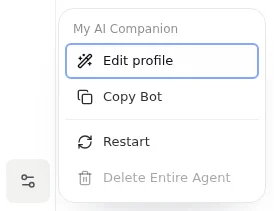
On desktop, Manage Bot is the sliders icon near the bottom of the Bot avatar rail, above the account avatar. Select the intended Bot, then open it for Edit profile, Copy Bot, Restart, and deletion actions. A failed Bot may offer repair instead. The main Bot shows Delete Entire Agent; additional Bots show Delete Bot. This button is separate from the Management sidebar group containing Models and Advanced Settings.
Before you start
- Confirm that your Hermes Agent is running.
- Confirm that your plan has room for another Bot. The plan limit includes the main Bot.
- Open Agents and select the Agent you want to manage.
Create a Bot
To create another Bot, select New Bot when the entry is available and your plan has capacity. Enter Name (required) and Description (optional), and adjust the appearance if needed. The default is Basic setup. If valid existing Bots can be copied, expand Advanced and select a specific source Bot. To copy the Bot you are using, open Manage Bot → Copy Bot; the creation form preselects that source. Review the source, then select Create and wait for completion.
The close control and advanced copy options are provided only when valid existing copy sources are available. The first setup without a source must be completed. Appearance controls let you change color, shape, and accessories; they do not choose the copy source.
Choose a creation method
| Method | Inherited | Not inherited |
|---|---|---|
| Copy Bot | Model, persona, Skills, user preferences, and long-term memory from the selected source Bot | Current conversation, chat history, scheduled tasks, runtime state, and channel connections |
| Basic setup | The main Bot's current primary model and its Provider credentials, plus built-in system Skills | Fallback models, other configured models, persona, memory, Skills installed later on the main Bot, channels, and scheduled tasks |
Basic setup is not an empty Bot. It keeps the minimum model and built-in Skill configuration needed to get started, while leaving personal behavior, memory, and integrations separate.
Confirm the new Bot
After creation, confirm the new Bot name in the selector, open its Web Chat, and send a short test message. If creation or initial configuration reports a failure, follow the displayed retry action and inspect the Bot list before starting another creation. If no reply arrives, check the Bot status and model credits or model configuration.
Work with multiple Bots
Select the intended Bot’s avatar in the Bot bar. On narrow screens, first expand the navigation panel. Confirm its name before changing models, memory, skills, channels, or scheduled tasks. Web Chat and its conversation list belong to the selected Bot; additional Bots can use Web Chat too. Connecting a messaging channel is not required for Web Chat.
To rename a Bot, select it and edit its displayed name. The new name can contain up to 60 characters.
Delete a Bot
- Deleting an additional Bot permanently removes that Bot's profile and data.
- Disconnect a channel owned by that Bot before deleting it.
- Delete all additional Bots before deleting the main Bot.
- Deleting the main Bot deletes the entire Agent, including all chats, configuration, installed Skills, memories, and related data.
Deletion cannot be undone. Read the confirmation message carefully and enter the requested Bot name before confirming.
Troubleshooting
Why can't I create another Bot?
Check whether multi-Bot creation is enabled for the account, whether the Agent is running, whether the plan has capacity, and whether another creation or deletion is in progress.
Why is a copied Bot missing conversations, tasks, or channels?
These items are intentionally not copied. Reconnect channels and recreate scheduled tasks for the new Bot as needed.
Why does Basic setup still show a model and Skills?
Basic setup inherits the main Bot's current primary model and Provider credentials and keeps only the built-in system Skills. It does not copy the main Bot's other models, persona, memory, later-installed Skills, channels, or scheduled tasks.
Last updated 2026-10-19