
Lark
Configure Channel - Lark
Summary
The Lark channel suits workplace use, supporting rich-text messages and @mentioning the bot in group chats, and connects the same way as WeChat: pick Lark in the console Channels section, click to authorize and generate a QR code, then scan it with Lark to start talking. You need Lark on your phone (or signed in on desktop) and a configured model (or simply the monthly model credits included with your plan). One agent can be connected to several channels at once, sharing the same persona and long-term memory.
The Lark channel is suited for office scenarios. It supports rich-text messages and @mentions of the bot in group chats. The integration uses QR-code authorization, similar to WeChat.
This page covers
-
Generating a Lark access QR code in LightVela
-
Scanning the QR code with Lark to authorize
-
Chatting with Hermes Agent in Lark
Steps
1. Enter the console
Sign in to LightVela, select the intended Bot, and open Daily → Channels in the console.
2. Select the Lark channel
Find the Lark card in Channels and select + Connect.
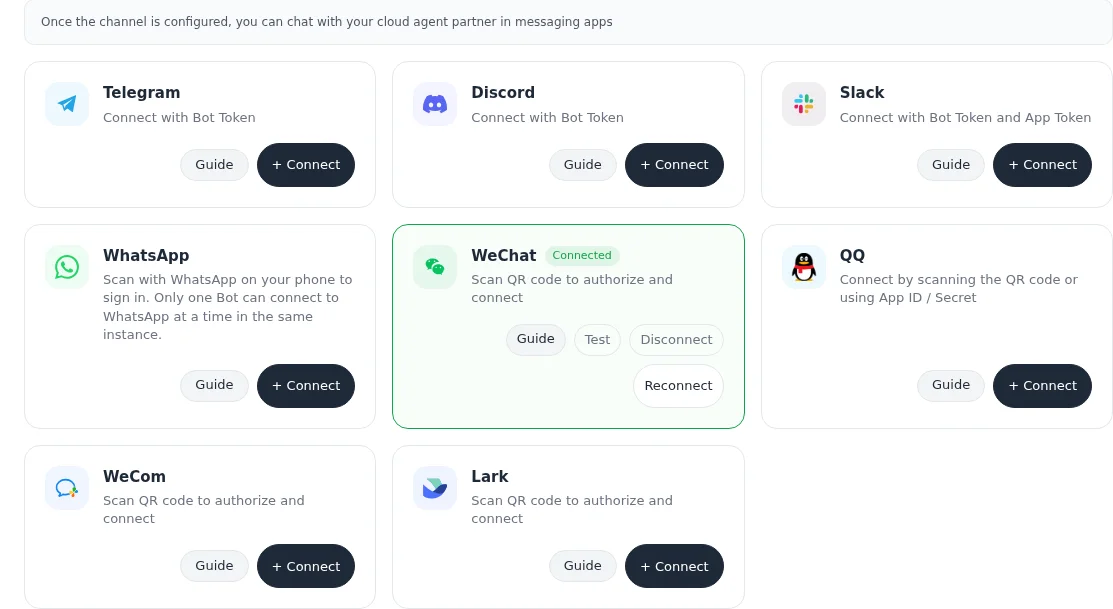
3. Scan to authorize
A QR code appears on the page.
4. Scan with Lark
On mobile:
-
Open Lark
-
Tap "+" in the upper-right corner → "Scan"
-
Scan the QR code on your computer screen
-
Follow the prompts to complete authorization
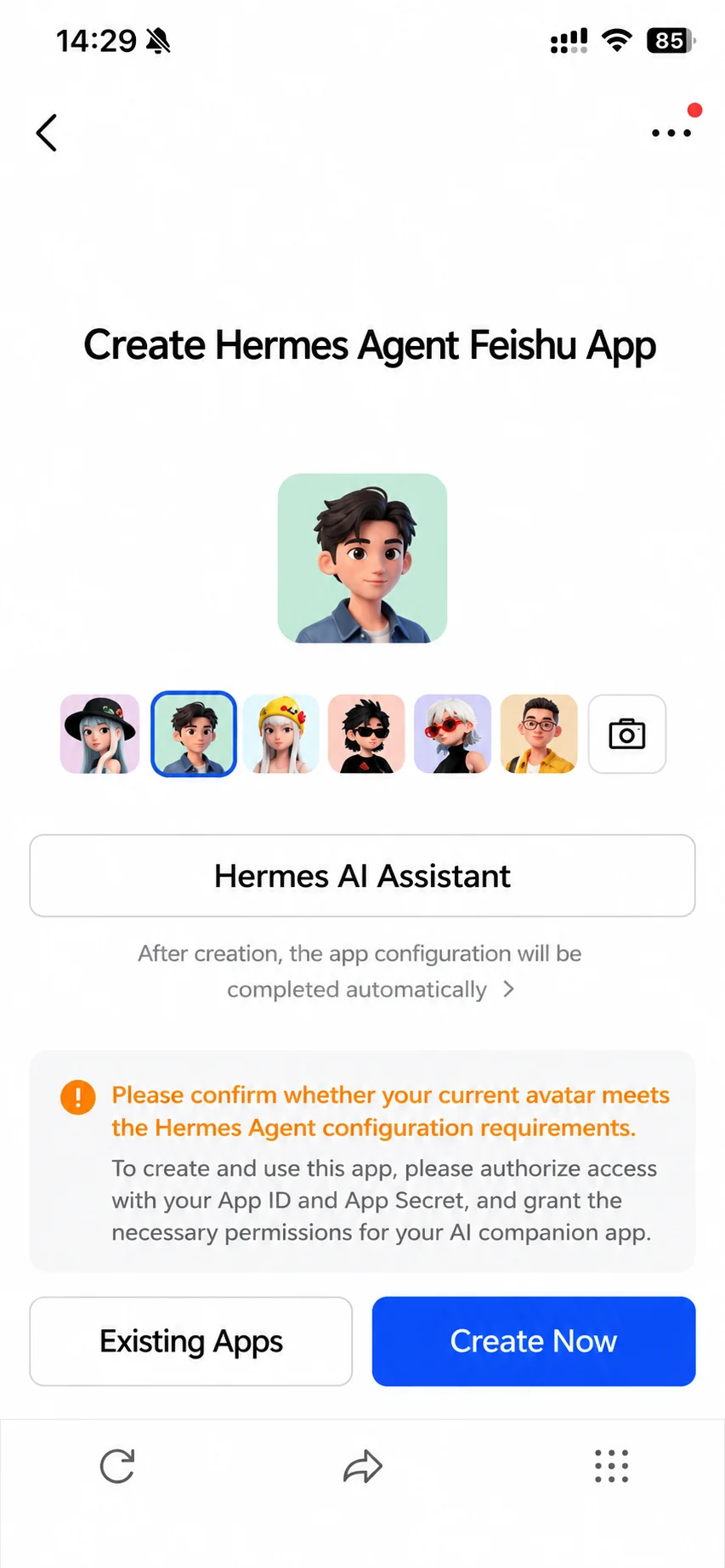
5. Find Hermes Agent in Lark
After a successful scan:
-
Check that the Lark card shows Connected, then send a test message from that platform.
-
Lark automatically adds the bot to your contacts
Search Lark for the application name you created.
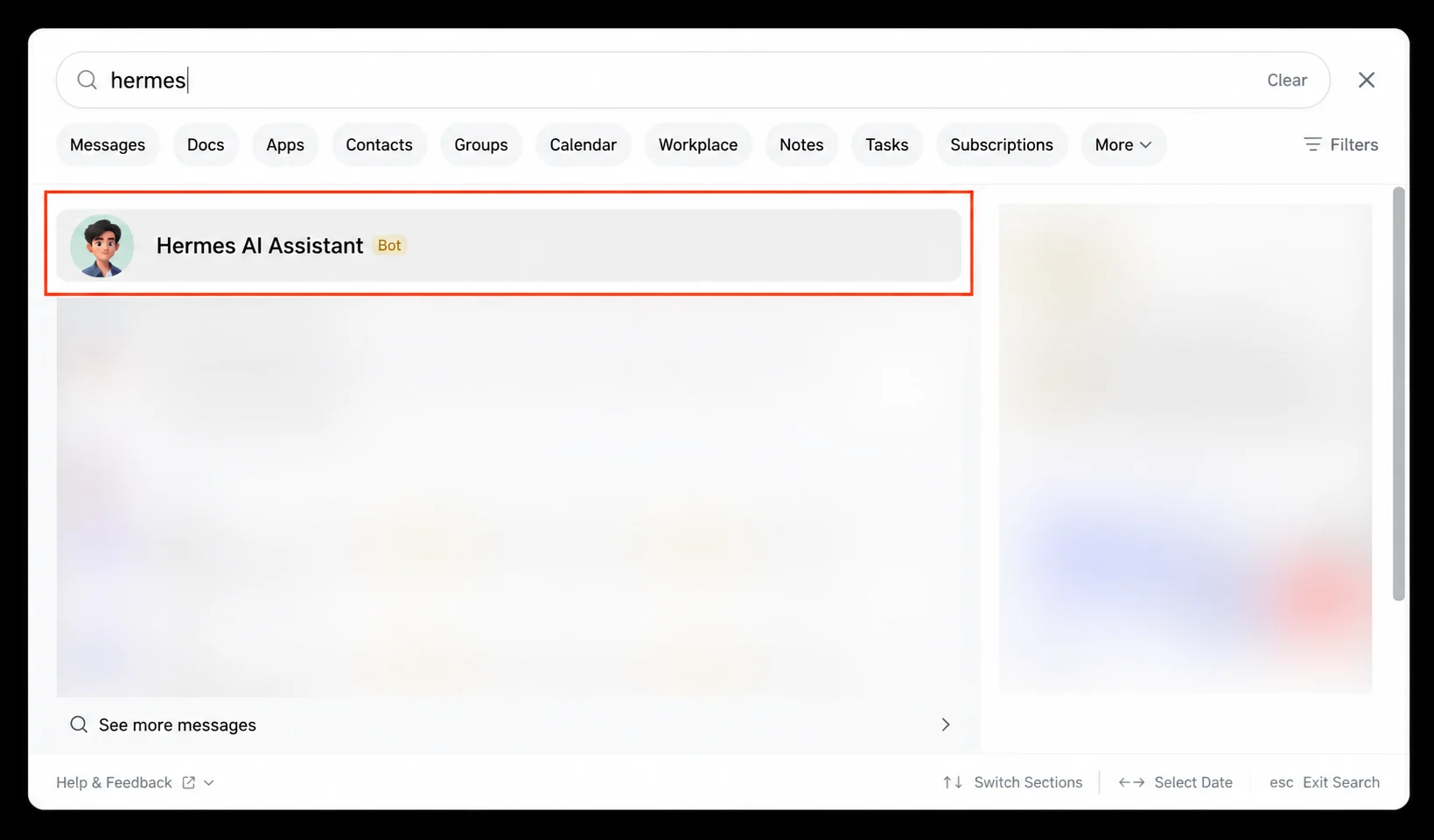
Open the bot's chat window and send a test message:
Hello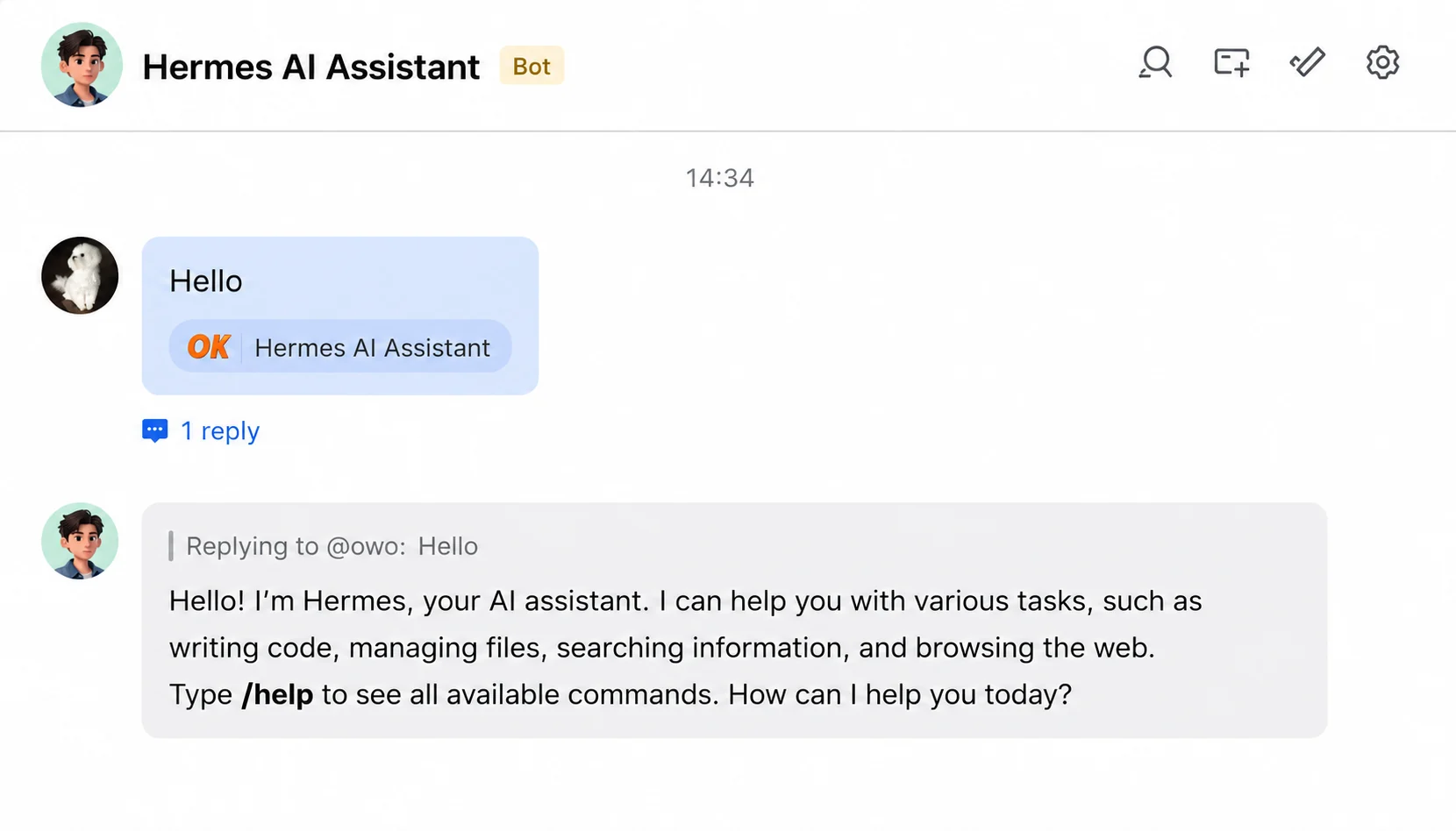
Success state
-
Check that the Lark card shows Connected, then send a test message from that platform.
-
The bot can be found via Lark search
-
Sending a message receives a Hermes Agent reply
Supported message types
After integration, the Lark bot supports more than basic text. The full list:
| Lark bot — supported message types and features | Supported |
|---|---|
| Receive text messages | ✅ Yes |
| Receive images | ✅ Yes |
| Receive files | ✅ Yes |
| Receive audio / video | ✅ Yes |
| Reply with text messages | ✅ Yes |
| Reply with images | ✅ Yes |
| Reply with files | ✅ Yes |
| Reply with audio | ✅ Yes |
| Reply content supports Markdown | ✅ Yes |
| Send messages proactively (e.g. scheduled reminders) | ✅ Yes |
| Operate Lark Docs, Wiki, Drive | ✅ Yes |
FAQ
| Symptom | Possible cause | Resolution |
|---|---|---|
| Scan shows "Application not authorized" | Tenant admin restricts third-party apps | Ask your tenant admin to allow the app, or switch to a personal tenant |
| Bot contact not found | Lark collapses bots by default | Search the Hermes Agent application name from the top of Lark |
| How to add the bot to a group | — | In group settings, "Add Members", search for the bot and add it |
| QR code expired | Not scanned within the validity window | Close the dialog and click "Connect" again |
| No reply after sending a message | Model not configured or trial credits exhausted | Check the "Current Model" status |
| Rich-text rendering issues | Lark does not support some Markdown syntax | Plain-text conversation is unaffected |
Channel notes
-
Message types: Text, rich text, images, files, audio, video, and more — see "Supported message types" above
-
Group chat support: The bot can be added to group chats and will respond when @mentioned
-
Tenant restrictions: Whether an enterprise Lark tenant allows third-party bots depends on the tenant admin's policy
Next steps
- Configure Skills — Extend Hermes Agent capabilities
Last updated 2026-10-19